VS Code on iPad.
A place to build.
Compare browser editing, remote compute and LinPad’s local Linux desktop editor. Open a project and understand the compatibility limits.
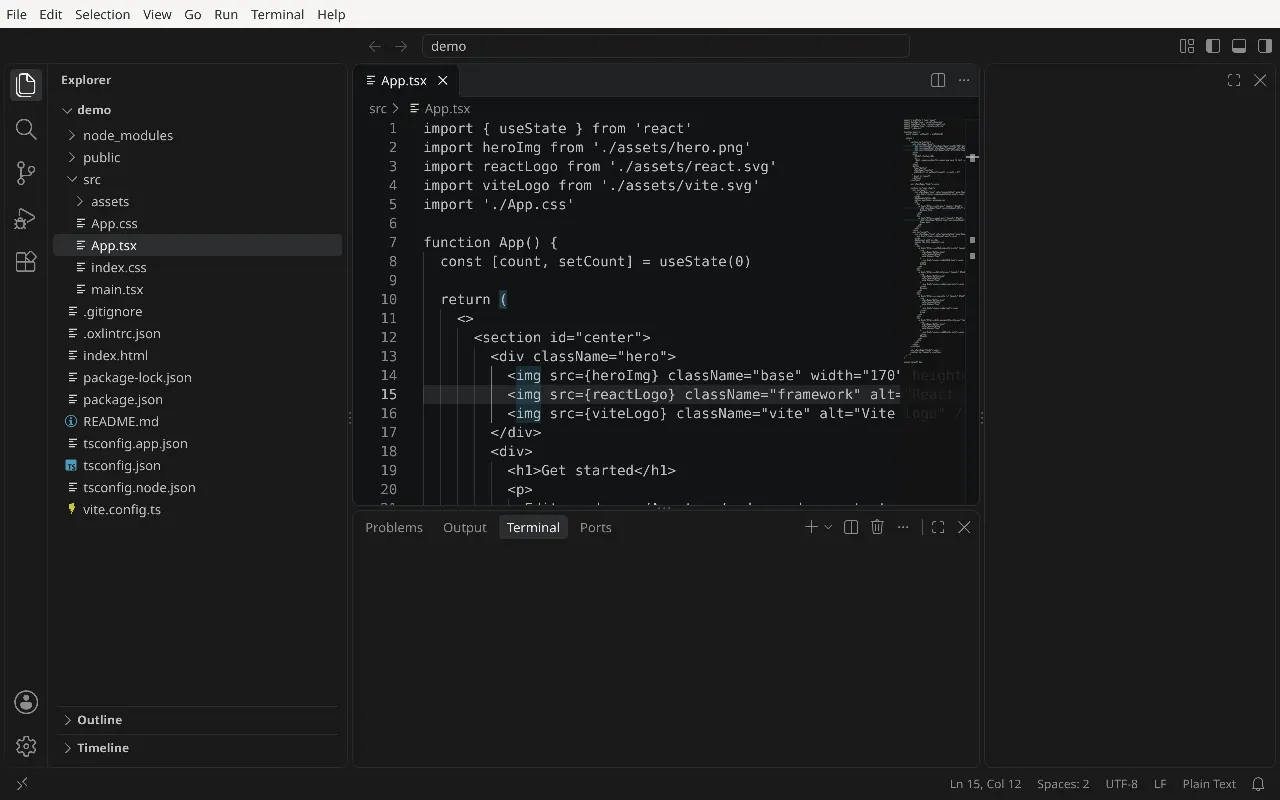
Three ways to use VS Code on an iPad
You can edit code in a browser, connect to a remote development environment, or run the Linux desktop editor locally through LinPad. The important difference is where your terminal, files and language tools run. An editor window alone does not give the iPad a Node.js or Python environment.
| Approach | Where code runs | Useful for |
|---|---|---|
| VS Code for the Web | Editing in the browser; additional compute needs a remote environment | Reading repositories and making lightweight changes |
| VS Code with remote compute | A cloud environment or your own computer | Projects that need more memory, containers or a server |
| VS Code in LinPad | A Linux environment inside the iPad app | Local files, terminal work and small development projects |
Microsoft describes VS Code for the Web as a browser editor with limitations around runtimes, terminals and extensions. Its remote options add compute elsewhere. That can be the right choice if your project depends on a server or a full Linux kernel.
What local VS Code means in LinPad
LinPad installs Microsoft’s Linux ARM64 desktop build of VS Code. It appears as a desktop window in LinPad and works with the guest Linux files and command-line programs. It is not a code-server tab connected to another computer. The project’s VS Code installer downloads the editor on the device and sets up the libraries it needs.
LinPad itself runs a Linux userspace inside iPadOS. It does not replace iPadOS, boot a separate Linux kernel or provide every Linux feature. An extension that expects a particular native binary, unsupported system call or container runtime can still fail. Treat extension compatibility as something to check with your own project.
The current target is an M1-or-newer iPad with iPadOS 17 or later. The project recommends at least 8 GB of memory for VS Code. That is a recommendation, not a completed device compatibility matrix or a promise that a large repository will run comfortably. LinPad is a pre-release.
Install the editor and open a folder
- Install LinPad with the sideloading guide. Launch it and let the Linux environment finish its first-time setup.
- Configure fast mode with StikDebug. Native ARM64 JIT is important for demanding applications; the interpreter fallback is slower.
- Open Settings › Apps and choose Visual Studio Code. Allow room for the editor and its support libraries; the manual estimates an installation around 900 MB.
- Open a terminal with ⌃⌥T, create a small working folder, then open it in the editor:
mkdir -p /root/projects/hello-ipad
cd /root/projects/hello-ipad
code .
The code launcher is installed with the editor. If the shell says it cannot find that command, check that the app installation completed before changing shell configuration. Start with a small folder so you can distinguish setup problems from the demands of a large project.
Use a local terminal alongside the editor
Node.js, npm and Git are included in the current base environment. Confirm what your installed build provides before using a project:
node --version
npm --version
git --version
For a first exercise, follow the Node.js and Git tutorial for iPad. It uses a small script without downloading dependencies. Python is an additional install; the Python-on-iPad guide shows the package and first script.
LinPad’s VS Code defaults disable Workspace Trust and extension signature verification. Only open projects and install extensions you trust; these defaults differ from a standard desktop installation. The current editor settings document them.
Download the editor, project dependencies and any extensions while you have a network connection. After that, simple local editing and scripts can work without a remote computer. Tasks that fetch packages, authenticate with services or call an API still need a connection.
Keyboard, windows and memory
A Magic Keyboard gives you physical keys and a trackpad. The iPad’s on-screen keyboard is also available. LinPad uses Control-Option for desktop commands, while Command shortcuts are forwarded to the focused app where supported. For example, the manual documents Command-S for saving and Command-W for closing a VS Code tab. iPadOS keeps some shortcuts, including Command-Tab.
Read the current keyboard shortcut table rather than assuming every desktop binding carries over. Tile the editor beside a terminal, keep the number of open windows small, and close browser tabs you do not need. If iPadOS closes LinPad under memory pressure, there is no measured speed claim that makes that limit disappear.
When local development is not the right fit
If your project needs Docker, a large container stack, x86-only binaries or services that depend on a full Linux kernel, use an appropriate remote development machine. LinPad does not support Docker. It is useful for having local Linux tools on an iPad, but the compatibility FAQ explains the boundaries.
If VS Code does not start, first check the installation and fast-mode status, then reduce other running apps. If packages or patched files were overwritten by an upgrade, the manual describes Settings › Maintenance › Repair. Keep backups of project files before experimenting with updates or resets.
Try your own project.
Check the requirements and current pre-release limitations before installing.
Download LinPad Read the install guide