Code on your iPad.
Start small.
Run a small JavaScript program locally, keep its files in Git and open the folder in VS Code. No dependencies or cloud account needed for the exercise.
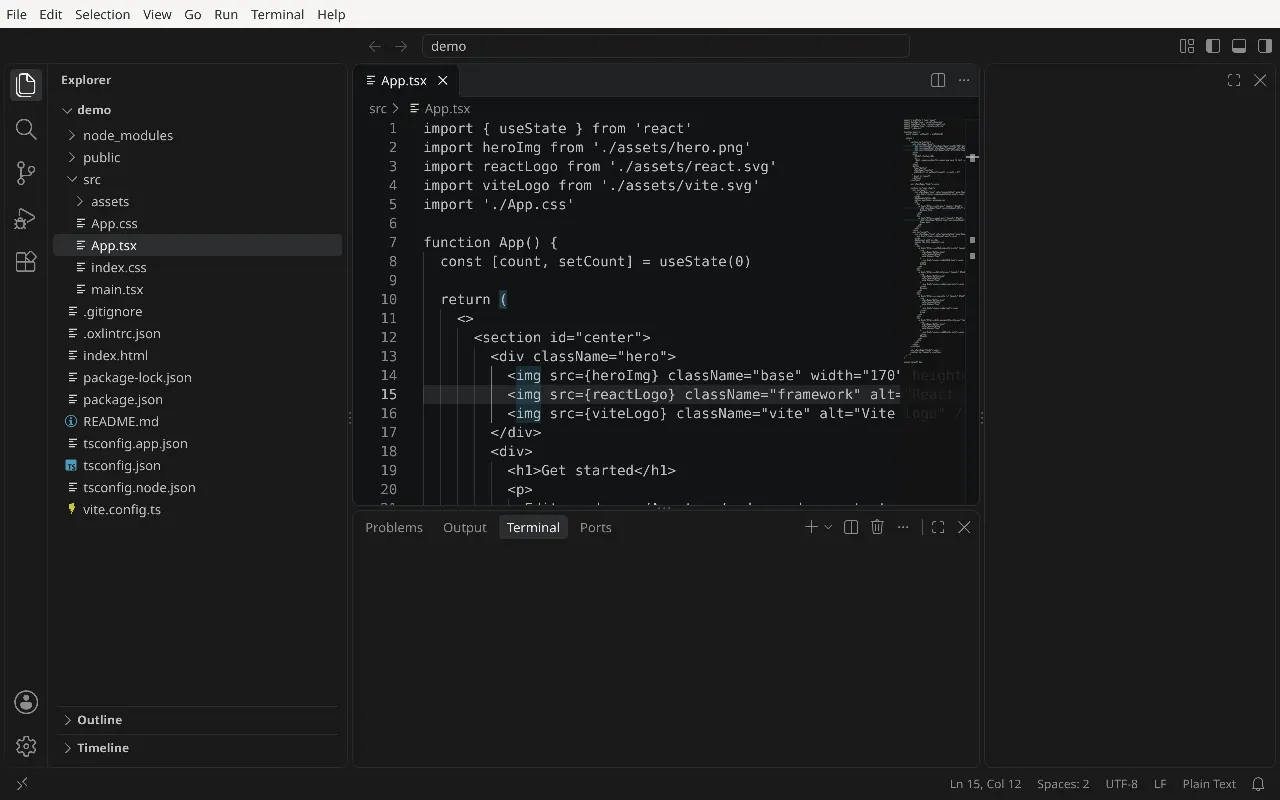
You can write and run code locally on an iPad with LinPad's Linux environment. This guide builds a small JavaScript command-line program, runs it with Node.js, and records a version with Git. There are no framework dependencies, cloud accounts or remote machines to configure.
LinPad is a pre-release for M1 or newer iPads running iPadOS 17 or later. It uses emulation inside an iPad app rather than replacing iPadOS. Device performance and compatibility vary; this tutorial is not a benchmark or a claim that every development project will work. Read how Linux runs on iPad before choosing it for important work.
Prepare your local workspace
Follow the LinPad installation guide, then open Terminal from Applications or press ⌃⌥T with a physical keyboard. Node.js, npm and Git are included in the base system. Check the tools and create a new folder:
node --version
git --version
mkdir -p ~/projects/linpad-task-list
cd ~/projects/linpad-task-list
The version commands should print version numbers. If a tool is missing, check your system update and repair options in the LinPad manual. Use a new project directory so the next command does not overwrite an existing file you care about.
You can install Visual Studio Code from Settings › Apps and open this folder with code .. The VS Code on iPad guide explains its separate download and memory needs. A text editor is enough for this exercise; VS Code is optional.
Write a tiny task-list program
This program holds three tasks in memory, prints whether each is complete and counts the unfinished tasks. Paste the entire block into the terminal, including the final EOF line. The quoted delimiter keeps the shell from interpreting the JavaScript while it writes the file:
cat > tasks.js <<'EOF'
const tasks = [
  { title: "Create a project folder", done: true },
  { title: "Run a local Node script", done: false },
  { title: "Save a Git checkpoint", done: false }
];

for (const task of tasks) {
  const marker = task.done ? "x" : " ";
  console.log(`[${marker}] ${task.title}`);
}

const remaining = tasks.filter(task => !task.done).length;
console.log(`Remaining: ${remaining}`);
EOF
node tasks.js
Expected output:
[x] Create a project folder
[ ] Run a local Node script
[ ] Save a Git checkpoint
Remaining: 2
The Node.js command-line documentation explains how a script file becomes the program entry point. Here, Node reads tasks.js in your current directory. You do not need npm install: this example uses the language and console output only.
Open the file in your editor, change the second task to done: true, save, and run node tasks.js again. Its marker should become [x] and the final count should become Remaining: 1. Editing and rerunning gives you a simple feedback loop without a build step.
Record a local Git checkpoint
Git lets you inspect changes and keep a history on the iPad. These commands create a repository in this folder and set a demonstration identity for this repository only. Replace it with your preferred author name and email if you plan to share the project later.
git init
git config user.name "LinPad Learner"
git config user.email "[email protected]"
git add tasks.js
git commit -m "Add a local task-list script"
git status --short
After a successful commit, the final command should print nothing: there are no uncommitted tracked changes. A commit stores a local checkpoint; it does not upload your code. See the official git init documentation and repository configuration reference for those commands.
Now change a task title and save. Run git diff to see the edit and git status --short to see the modified file. You can make another checkpoint with git add tasks.js and git commit -m "Update a task title". This is useful even before you connect a remote repository.
Make the iPad workflow comfortable
With a Magic Keyboard or another physical keyboard, keep the editor beside the terminal. LinPad's default desktop commands use Control-Option; Control-Option-Shift-T toggles auto-tiling. The iPad terminal guide and keyboard shortcut table cover navigation and input. Linux apps currently use a US physical keyboard layout.
Save frequently and keep LinPad open while a command runs: iPadOS can suspend it in the background. Large dependencies, multiple editor windows and heavy browser tabs add memory pressure. Optional fast mode enables the ARM64 JIT when its helper setup succeeds; this tutorial promises no device speedup. Detailed device testing across the supported range is still incomplete.
Your next useful step is to add one task and check that the count changes. Back up the project before experimenting with larger packages. A Git history inside the app is helpful, but deleting LinPad also deletes that local history and its files.
Try your own project.
Check the requirements and current pre-release limitations before installing.
Download LinPad Read the install guide