Linux on iPad.
Know your options.
Understand local Linux apps, virtual machines and remote computers, then choose the setup that fits the work you want to do.
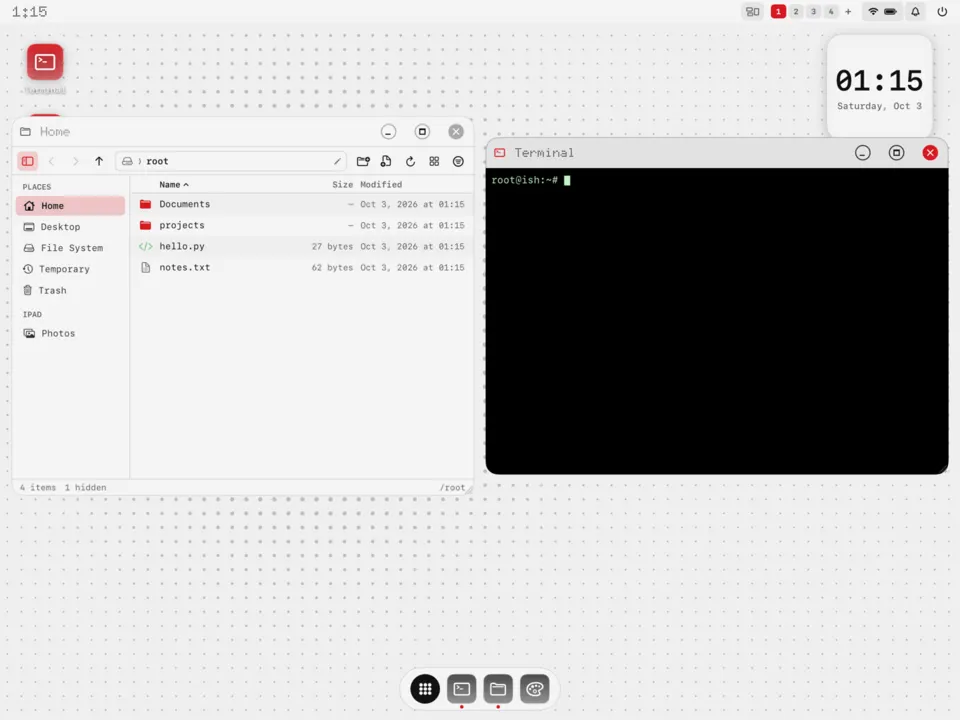
You can run a Linux environment on an iPad, but “Linux on iPad” can describe several different things. A local shell, a desktop inside an app, an emulated computer and a connection to a remote server solve different problems. The useful question is where your programs run and what they need from the operating system.
LinPad runs an Alpine Linux environment on the iPad itself, with a tiling desktop, terminal and Linux applications. It is a pre-release that you sideload. It keeps iPadOS in place and does not require a jailbreak.
Running Linux tools is different from replacing iPadOS
Installing LinPad does not turn your iPad into a machine that boots a Linux kernel instead of iPadOS. Linux programs run through a usermode emulator inside the app’s sandbox. You get a Linux filesystem, package tools and applications, while iPadOS still manages the device, app permissions and memory.
That distinction explains both the appeal and the limits. You can edit a project, use Git and run command-line tools locally. You cannot assume that every Linux service, driver or container workflow will work. LinPad does not support Docker: the required kernel facilities are unavailable. A userland environment is also not a promise of a complete systemd-based Linux system.
Four ways to work with Linux on an iPad
| Approach | Where programs run | Useful when you need | Check first |
|---|---|---|---|
| LinPad | Locally, inside an iPad app | A Linux desktop, terminal and development tools together | Target device requirements, sideloading and pre-release limits |
| iSH | Locally, in an emulated Linux shell | Command-line tools and a compact shell environment | Compatibility and performance of your packages |
| UTM / UTM SE | Inside an emulated guest computer | Experimenting with a guest operating system | Edition, guest requirements and JIT availability |
| Browser editor / remote Linux | In the browser, or on another computer | Light editing or access to a server’s tools | Execution support, network access and host costs |
iSH’s official site describes its local Linux shell as a usermode x86 emulator and offers an App Store download. It is a good starting point if a shell is the main thing you want. LinPad builds on the iSH family of projects and adds an ARM64 environment and desktop experience.
UTM takes the guest-computer approach. Its official iOS installation documentation distinguishes UTM from UTM SE: SE uses an interpreter and does not support JIT. Available installation methods and features depend on the edition, device and operating-system version. Check those details before choosing a guest distribution.
A browser editor can be simpler for small changes. Microsoft describes VS Code for the Web as a browser-based editor with limitations compared with desktop VS Code. A remote environment can provide tools that the browser alone cannot run, but the computation happens on that host. Our VS Code on iPad guide explains these choices.
What LinPad needs today
LinPad targets iPads with an M1 chip or newer and iPadOS 17 or later. This is a development target, not a claim that every matching device and iPadOS release has been tested. For memory-heavy applications such as VS Code, 8 GB of memory or more is recommended. Check the LinPad compatibility and limitations FAQ before planning a project around it.
Installation uses sideloading with your own Apple ID. Follow the LinPad installation guide, including the signing and refresh requirements for your chosen method. The app is a pre-release, so keep backups of work you care about.
Fast mode is optional. It uses StikDebug to enable LinPad’s ARM64 JIT; without it, LinPad uses its slower compatibility mode. The fast-mode setup guide covers the helper and checks. Performance depends on the app, workload and device. Published development benchmarks are not an iPad-wide speed guarantee.
Choose around your actual work
- For shell commands: start with the local Linux terminal on iPad guide. Decide whether you need programs on the tablet or an SSH connection to another machine.
- For local editing and development: LinPad brings the editor, shell and files into one environment. The coding on iPad guide walks through a small project before you move a larger one.
- For a particular Linux distribution: investigate a UTM guest and its requirements; LinPad’s base system is Alpine.
- For Docker, large builds or persistent services: a remote Linux computer may fit better. Plan for connectivity and access to that host.
Start with a small representative task. Open your files, run the commands you use and check keyboard input and memory use. That gives you a more useful answer than treating every Linux-on-iPad option as the same computer.
Try your own project.
Check the requirements and current pre-release limitations before installing.
Download LinPad Read the install guide