An iPad terminal.
Start with a shell.
Choose between a local shell and SSH, make a text file, install an Alpine package and understand where your iPad’s Linux files live.
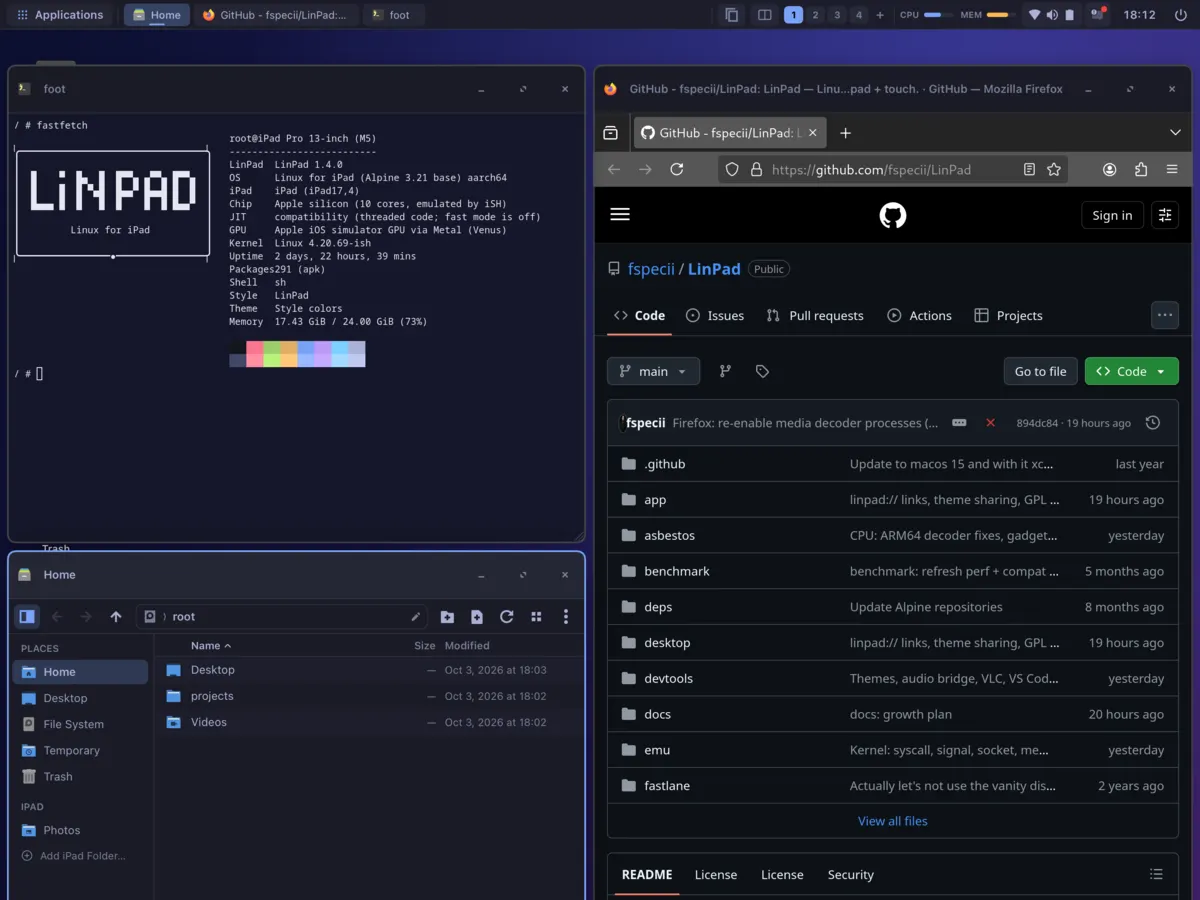
An iPad terminal can be local or remote
A terminal is an interface to a command-line program. The window may look the same whether commands run on your iPad or on a server thousands of miles away. Choose the environment before choosing the keyboard shortcuts or colour theme.
An SSH client connects to another computer. That computer supplies the shell, storage and CPU. A local Linux environment supplies those tools inside an iPad app. LinPad takes the local route: it includes a Linux desktop and the foot terminal, backed by an Alpine Linux userspace.
| Need | Environment to consider |
|---|---|
| Manage an existing Linux server | An SSH client connected to that server |
| Work with local files and small scripts | A local Linux userspace such as LinPad |
| Run containers or kernel-dependent services | A suitable remote computer or supported virtual machine |
| Use a terminal beside local desktop apps | LinPad’s windowed desktop and terminal |
A local terminal is not the same as installing Linux as the iPad’s operating system. LinPad translates Linux system calls inside an iPadOS app. Read the Linux-on-iPad guide for the difference between userspace, a virtual machine and a remote computer.
Open your first LinPad terminal
LinPad is a pre-release targeting M1-or-newer iPads on iPadOS 17 or later. You sideload it with your own Apple ID. Start with the installation guide, then set up ARM64 JIT fast mode for heavier work. Interpreter fallback is available, but slower; device performance measurements are not yet published.
On the desktop, use the terminal icon or press ⌃⌥T on a physical keyboard. The on-screen keyboard also works. These commands let you inspect the environment without changing system files:
pwd
whoami
cat /etc/alpine-release
node --version
git --version
pwd prints the current directory. whoami prints your user; LinPad’s environment uses root. The release file identifies Alpine, while the last commands check installed development tools. Root here means control inside LinPad’s Linux environment, not root access to iPadOS.
Make a folder and a text file
Use a dedicated project directory so your experiments stay together. The following creates one file and reads it back:
mkdir -p /root/projects/terminal-notes
cd /root/projects/terminal-notes
printf 'Hello from my iPad\n' > notes.txt
cat notes.txt
ls -l
The > operator writes the output to a file and replaces that file if it already exists. Use a new filename when you want to keep an earlier version. To add a line instead, use >>:
printf 'A second line\n' >> notes.txt
cat notes.txt
These are ordinary shell operations, so the same habits transfer to other Unix-like environments. The examples use only the demonstration folder. Keep your real work backed up before trying unfamiliar commands.
Install software with Alpine’s package manager
LinPad uses Alpine’s apk package manager. It is not Debian’s apt or a macOS package manager. Search for a package before installing it:
apk search python3
apk add python3
python3 --version
Installing packages needs a network connection and changes the guest Linux environment. The package manager resolves dependencies, but a package being available does not guarantee that every feature works under LinPad’s system-call support. Check Alpine’s official apk guide for package commands, and use LinPad’s Store or Settings › Apps for its curated app packs.
Python is not included in the current base package list. For a small script and an explanation of virtual environments, continue with running Python on an iPad in LinPad.
Work with iPad folders deliberately
Your Linux files belong to LinPad’s app storage. The app can also expose iPad folders you choose to add; the manual documents them under /mnt/ipad/<name>. Use the folder name shown by your own setup instead of copying a made-up path.
For an initial project, use /root/projects. Once the tools are working, consult iPad folder access and file management before moving work between local storage, iCloud Drive and other apps. Sharing a folder is a file-access choice, not a replacement for a backup.
Keep the terminal useful on a tablet
A physical keyboard helps with Control keys, arrows and long commands, while touch is useful for moving windows and opening apps. LinPad’s default desktop shortcuts use Control-Option. The keyboard and trackpad reference lists the current bindings and notes that Linux apps currently receive a US layout.
Use the first Node.js and Git project to turn a shell into a small working development setup, or open VS Code beside it. When a workload needs Docker, unsupported kernel features or more memory than the iPad can provide, move that workload to an appropriate computer rather than trying to solve it with terminal settings.
Try your own project.
Check the requirements and current pre-release limitations before installing.
Download LinPad Read the install guide