Python on iPad.
Run your first script.
Install Python in LinPad, run a small script and keep package dependencies in a virtual environment. Learn which workloads need another computer.
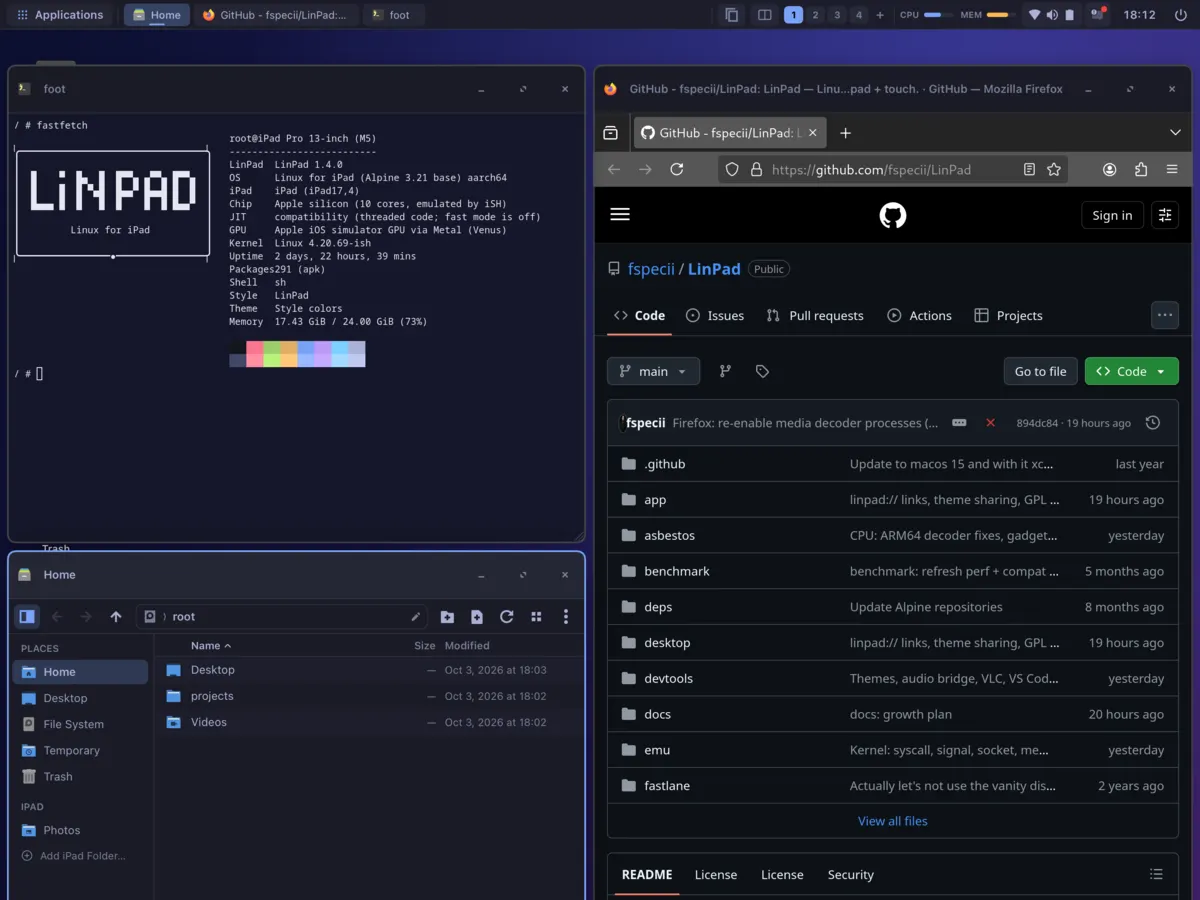
LinPad can run Python in a local Alpine Linux environment on your iPad. This tutorial installs Python, runs a greeting and creates a small statistics script using the standard library. You do not need a remote server, a notebook service or a third-party Python package for the example.
LinPad is a pre-release targeting M1 or newer iPads on iPadOS 17 or later. Python runs inside its emulated Linux environment, not as an iPadOS system interpreter. The Linux on iPad guide explains that architecture and its limits. Detailed device measurements and compatibility testing across the target range remain incomplete; do not infer desktop performance from this small exercise.
Install Python in LinPad
Start with the installation guide if LinPad is not already set up. Open Terminal from Applications or use ⌃⌥T with a physical keyboard. Python is available as an additional Alpine package; do not assume it is already installed in the base system.
apk add python3
python3 --version
python3 -c 'print("Hello from Linux on iPad")'
The package command needs an internet connection. LinPad's default Linux user is root, so these commands do not use sudo. Alpine's apk package-manager documentation describes package installation. If the download fails, check connectivity and the package-manager message before retrying.
The final command should print Hello from Linux on iPad. Use python3 consistently: the separate command python is not guaranteed to exist. Installing just Python is enough here. Settings › Apps also offers an experimental Developer extras pack containing Python, pip and several compilers, but this tutorial does not require that larger collection.
Create a useful statistics script
Create a fresh folder for this exercise. The next block writes study.py, so use a folder without an existing file of that name. Paste through the final EOF line:
mkdir -p ~/projects/python-study
cd ~/projects/python-study
cat > study.py <<'EOF'
from statistics import mean, median

minutes = [25, 40, 30, 35, 20]
print("Study sessions:", len(minutes))
print("Total minutes:", sum(minutes))
print(f"Mean minutes: {mean(minutes):.1f}")
print(f"Median minutes: {median(minutes):.1f}")
EOF
python3 study.py
Expected output:
Study sessions: 5
Total minutes: 150
Mean minutes: 30.0
Median minutes: 30.0
The list represents five study sessions in minutes. The script reports the count and total, then uses two functions from Python's built-in statistics module. There is no pip install step. Keeping the example within the standard library avoids package builds and makes its behavior easier to inspect.
Open study.py in Text Editor or, if installed, run code . for VS Code. Add a sixth value, 60, to the list, save and rerun. The count should become 6, the total 210, the mean 35.0 and the median 32.5. Change the values to your own positive numbers and compare the results.
This sample assumes the list contains at least one number. An empty list has no mean or median and raises a statistics error. If you later read data from a file, validate the inputs rather than assuming every line contains a number.
Optional: keep future dependencies in a virtual environment
The script above needs no environment setup beyond Python. When a future project requires third-party packages, a virtual environment keeps that project's installed Python packages separate from the system. Install Alpine's pip package, then create the environment inside your project:
apk add py3-pip
python3 -m venv .venv
. .venv/bin/activate
python -m pip --version
python study.py
deactivate
After activation, python refers to the environment's interpreter. deactivate returns your shell to its previous configuration; it does not delete the environment or project. Python's venv documentation explains activation and isolation. If you track this project with Git, exclude .venv/ from commits and recreate it when needed.
Alpine uses musl and ARM64. A package that expects a different binary platform may need compilation or may not work with LinPad's emulator. Virtual environments organize dependencies; they do not make incompatible native packages work. Begin with packages whose requirements you can verify.
Keep your work safe and manageable
The local terminal guide covers file navigation and keyboard controls. The VS Code setup guide is useful when your script grows beyond a single file, but its editor has substantial memory requirements. You can continue with Text Editor and Terminal for a small project.
Keep LinPad in the foreground during long jobs because iPadOS can suspend it when you switch away. Optional fast mode uses the ARM64 JIT after helper setup; device speedups are not established by this tutorial. Save your edits and follow the manual's file and backup guidance. Installing an update over the app preserves its data; deleting the app removes your local projects.
For a next exercise, add a line that prints the shortest and longest session with min(minutes) and max(minutes). You now have an inspectable local program you can edit, rerun and extend on the iPad.
Try your own project.
Check the requirements and current pre-release limitations before installing.
Download LinPad Read the install guide